Phone:
+254 719 428 550
Physical address:
Information House, Hakati Road,
Nairobi, Kenya.

Phone:
+254 719 428 550
Physical address:
Information House, Hakati Road,
Nairobi, Kenya.
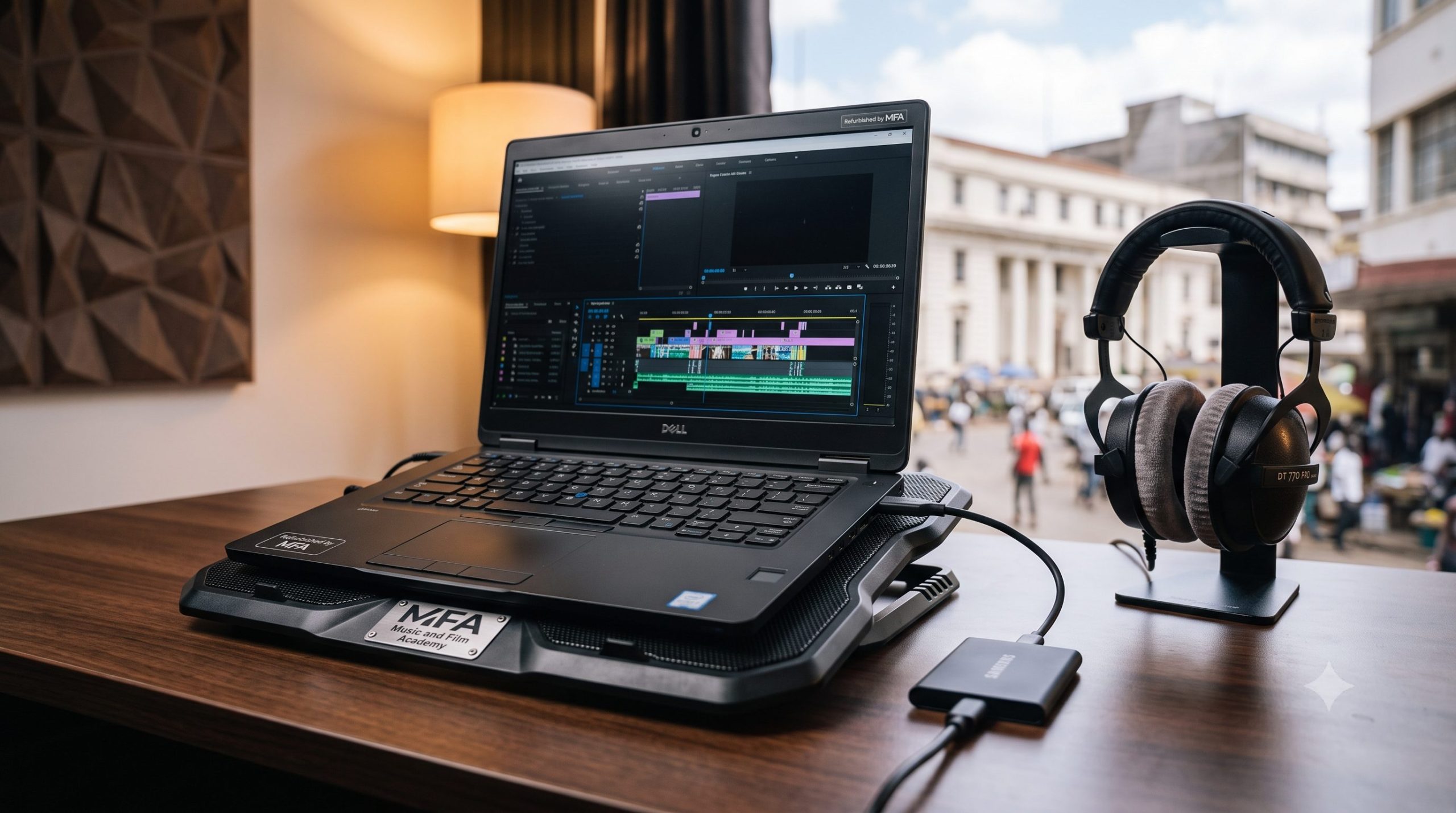
For digital content creators, independent videographers, and social media managers across Nairobi, a slow computer is the ultimate roadblock to creative growth. There is nothing more frustrating than waiting hours for a simple five-minute TikTok clip to render, or watching your timeline freeze and crash inside Adobe Premiere Pro or DaVinci Resolve just as you are adding final color grades. If you are operating on a tight budget, finding a machine that can handle modern video compressions without breaking the bank is a difficult challenge. Navigating the tech markets to find the best budget video editing laptops for creators in Kenya under KES 80,000 requires moving past generic marketing buzzwords and focusing strictly on hardware components.
Many computer shops along Luthuli Avenue, Kimathi Street, or online platforms will try to sell you standard office laptops by pointing out generic features like “Core i7” or “large storage.” However, video editing is an incredibly resource-heavy task that relies on a specific balance between your central processing unit (CPU), graphics processing unit (GPU), dedicated video random-access memory (VRAM), and system RAM. Buying the wrong hardware configuration can leave you stuck with a machine that chokes on 1080p files and leaves you with constant rendering headaches. This comprehensive guide breaks down the technical minimum specifications, smart shopping strategies, and refurbished workstation options available to help local creators secure a reliable editing machine for under KES 80,000.
When searching for the best budget video editing laptops for creators in Kenya, you must evaluate the internal hardware components like an engineer. Video editing software handles media processing through hardware acceleration. This means your computer must have a dedicated pipeline to unpack, render, and export video frames smoothly.
[RAW Video Footage] ──► [CPU: Unpacks Codecs] ──► [RAM: Timeline Cache] ──► [GPU & VRAM: Effects & Color] ──► [Final Export]
Random Access Memory (RAM) serves as your computer’s short-term memory pool, holding active project files and preview caches while you edit.
A dedicated graphics card is what separates a standard office computer from a true video editing workstation. Integrated graphics (like Intel UHD or Iris Xe) share your main system memory and CPU power, making them poorly suited for demanding creative apps.
Once you know the exact hardware specifications you need, the next step is figuring out where to buy your machine safely. With a budget cap of KES 80,000, buying a brand-new, high-end gaming or creator laptop from retail showrooms is generally out of reach, as those models typically retail past KES 150,000. Your best path forward is exploring the thriving local market for certified ex-corporate refurbished enterprise workstations or entry-level gaming setups.
Nairobi’s downtown electronic hubs, particularly shops along Luthuli Avenue, Mfangano Street, and Tom Mboya Street, offer a massive variety of affordable laptops. However, shopping in these busy environments requires careful inspection to avoid buying a faulty or poorly configured machine.
If you want to maximize your value under KES 80,000, consider buying an ex-corporate mobile workstation (such as an HP ZBook or a Dell Precision) rather than a standard consumer laptop. Enterprise laptops are built with high-quality components designed to run heavy computing tasks continuously for years, making them highly reliable options for creators.
| Laptop Architecture Category | Recommended Model Examples | Key Hardware Specs | Target Price Range (KES) |
| Refurbished Enterprise Workstation | HP ZBook 15 G5 / Dell Precision 5530 | Intel Core i7 8th Gen, 16GB RAM, 4GB Nvidia Quadro GPU, 512GB NVMe SSD | KES 55,000 – KES 75,000 |
| Entry-Level Refurbished Gaming | Lenovo Legion 5 / ASUS TUF Gaming | AMD Ryzen 5 / Intel Core i5, 16GB RAM, 4GB Nvidia GTX 1650/RTX 3050, 512GB SSD | KES 68,000 – KES 80,000 |
| Premium Ultra-Portable | Apple MacBook Pro (Retina, 15-inch, 2017) | Intel Core i7, 16GB RAM, 4GB Radeon Pro GPU, 512GB SSD | KES 65,000 – KES 78,000 |
💡 The MFA Factor: Save your rendering headaches. Our Video Editing Courses in Kenya grant you unlimited, hands-on access to high-spec editing suites on campus so you can focus on creating without lag or hardware bottlenecks.
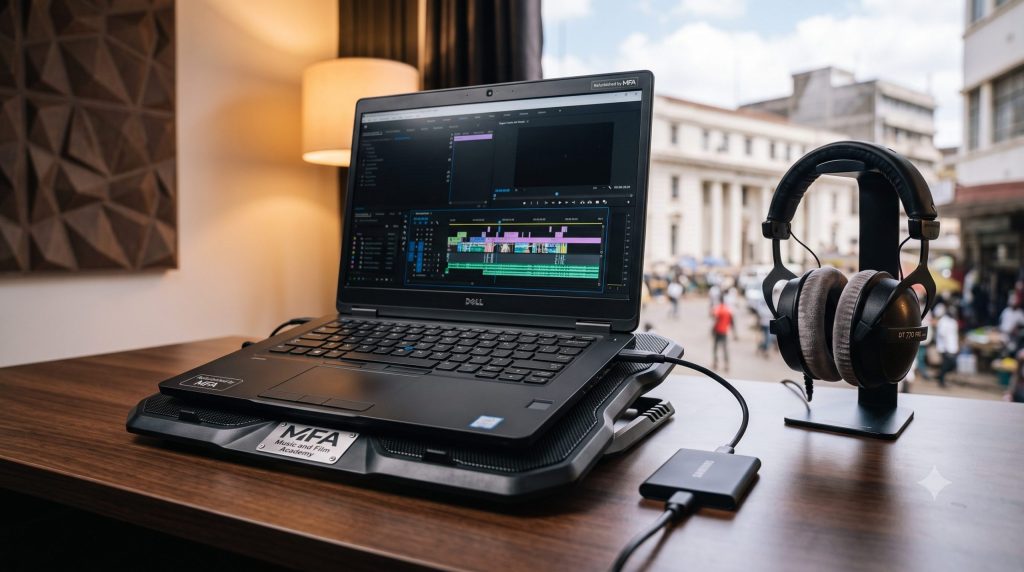
A frequently overlooked bottleneck when looking for the best budget video editing laptops for creators in Kenya is your storage drive architecture. Many older or lower-priced laptops use traditional spinning hard disk drives (HDDs) for storage. While HDDs offer large storage capacities for cheap, they are far too slow to handle the fast data read and write speeds required for modern high-definition video editing.
Your laptop must use an NVMe Solid State Drive (SSD) as its primary operating system drive. SSDs use fast flash memory cells, allowing them to read and write data up to twenty times faster than an old-fashioned HDD.
Even if you manage to find a well-configured machine under KES 80,000, editing on budget-friendly hardware means you need to work smart. You must optimize your software settings and editing workflows to reduce the strain on your hardware components and avoid system slowdowns.
[Import High-Res Video] ──► [Generate Low-Res Proxies] ──► [Smooth, Lag-Free Editing] ──► [Export Matches Original File]
Proxy editing is an essential technique used by professional editors worldwide to work smoothly on mobile workstations. A proxy is a low-resolution copy of your high-quality video footage that your editing software creates automatically during import.
Learning to manage your system cache and toggle proxy switches manually keeps your timeline moving without lag. You can master these asset-handling and optimization techniques step-by-step through our structured Basic Certificate in Video Editing Course modules at the Music And Film Academy.
Beyond internal memory and processing power, you must evaluate a laptop’s physical build and display accuracy before making a purchase.
When color grading video projects for commercial clients or corporate brands, your screen must display colors accurately. Many budget gaming laptops use low-quality TN panel screens that shift contrast and wash out colors depending on your viewing angle.
As a creator working in warmer environments, your laptop will generate significant internal heat during long rendering or color-grading sessions. When internal temperatures rise too high, the system will engage thermal throttling, intentionally slowing down your CPU and GPU to prevent components from overheating.
                  [LAPTOP THERMAL PROTECTION]
                               │
       ┌───────────────────────┴───────────────────────┐
       ▼                                               ▼
[Flat Desktop Surface]                       [External Cooling Fan Pad]
       │                                               │
Keeps bottom intake vents                      Draws heat away from internal
unobstructed for airflow                       chips to prevent thermal throttling
Choosing the right computer hardware is critical, but technical specs mean nothing if you don’t know how to capture high-quality footage on set. Explore our primary Videography Courses in Kenya hub to learn production and framing mechanics from the ground up on professional cinema setups.
Securing the best budget video editing laptops for creators in Kenya for under KES 80,000 is entirely possible if you prioritize exact technical specifications over marketing hype. By focusing your search on certified refurbished mobile workstations or entry-level gaming setups equipped with 16GB of system RAM, a dedicated graphics card with 4GB of VRAM, and a fast NVMe SSD storage layout, you can protect your freelance business from constant rendering slowdowns and system crashes.
However, building a successful creative career requires more than just technical hardware; it takes structured, hands-on guidance from experienced industry mentors. At the Music And Film Academy, we believe your creative development shouldn’t be limited by personal hardware budgets. Our modern campus labs in Nairobi grant our students unlimited access to professional camera systems, industry-standard editing suites, and dedicated high-spec production workstations.
Ready to move past basic editing timelines and master professional multi-camera editing, advanced color science, and industry-grade color pipelines? Elevate your post-production career by checking out the advanced training tracks on our Advanced Certificate in Video Editing Course page or look into our high-tier Advanced Certificate in Videography Course options. Upgrade your creative toolkit, refine your practical workflows, and enroll with us today.